How to Find the URL of a Video: A Practical Guide
You've copied the link from a video platform, pasted it into a script, and received a 403 Forbidden response. Or the URL opens a page in your browser but gives your ingestion worker HTML instead of video bytes. Sometimes the link works during testing and fails later because it was signed for a short period.
The problem usually isn't the copy action. It's that “video URL” can mean several different resources. A watch-page URL loads a player shell, an embed URL is designed for an iframe, and a direct media or manifest URL points closer to what the player requests. If you identify the wrong one, the address can look perfectly valid while still failing in a downloader, mobile player, or multimodal search pipeline.
You'll get better results by deciding what you need before opening developer tools. Are you sharing a playable page, embedding a player, or retrieving the media stream itself? That distinction turns URL discovery from trial and error into a controlled check.
Table of Contents
- Why the Video URL You Copied Might Not Work
- Start by naming the resource
- The Three Types of Video URLs Explained
- Watch pages are wrappers
- Embed URLs solve a different problem
- Direct media URLs aren't always single files
- Finding a Video URL in a Desktop Browser
- Use the network inspector as the source of truth
- Make the capture easier to read
- Locating Video URLs Inside Mobile Apps and SDKs
- Android with Media3 or ExoPlayer
- Flutter source inspection
- Native iOS players
- Using Video URLs in Ingestion and Search Pipelines
- A durable ingestion pattern
- Why multimodal context changes search
- Troubleshooting Signed and Restricted Video URLs
- Replay the exact network request
Why the Video URL You Copied Might Not Work
A platform's share button often gives you the right URL for a person, not the right URL for software. The copied address may open a watch page containing metadata, JavaScript, authentication checks, and a player configuration. Your script then downloads the wrapper instead of the underlying video.
That's the first false win. The second is a link that works only because your browser has cookies, authorization headers, or an approved referrer. Paste it into curl, a backend queue, or a colleague's browser and it fails. The third is a signed URL, where the address includes a temporary authorization token. It can play immediately, then expire before a worker retries the job.
Start by naming the resource
A watch-page URL is human-facing. On YouTube, the familiar direct format pairs the domain with an 11-character video identifier through a watch?v= pattern, while the compact youtu.be domain provides a shorter sharing alternative. YouTube also introduced channel handles on October 10, 2022, using addresses that begin with youtube.com/@ (the documented history of YouTube).
Those formats make sharing easier, but they don't automatically expose a downloadable file. Modern delivery can involve playlists, variants, and segments. HTTP Live Streaming was standardized as RFC 8216 in 2017, and the W3C's Media Fragments URI specification, published in 2009, helped standardize ways to address parts of media rather than only an entire resource (HTTP Live Streaming specification history).
Practical rule: A URL that opens a video page proves that you found a page. It doesn't prove that you found the media asset.
Before using any URL, ask:
- Does it return a player page? Keep it as the canonical watch link.
- Does it load inside an iframe? Treat it as an embed URL, with possible origin restrictions.
- Does it return media or a playlist? That's the candidate for ingestion, extraction, or search.
This matters even more when a clip has been reposted. Reverse-video guidance recommends saving the strongest available copy or using the public URL, comparing matches by timing, length, account type, and description quality, then extracting keyframes when the original upload page is unclear (reverse-video source discovery guidance). Finding the right source page and finding the playable asset are related tasks, but they aren't the same task.
The Three Types of Video URLs Explained
Treat these three categories as separate interfaces. Each has a different consumer, failure mode, and level of portability.
| URL Type | Purpose | Typical Extension | Reusable Elsewhere | Where to Find It |
|---|---|---|---|---|
| Watch-page URL | Opens the platform's human-facing player page | Usually no media extension | Good for people, weak for direct ingestion | Address bar, share menu, channel or post page |
| Embed URL | Loads a player inside an iframe or embedded component | Often no extension | Reusable only where origin and privacy rules permit | Embed dialog, page source, player configuration |
| Direct media or manifest URL | Identifies the file, playlist, or stream requested by the player | .mp4, .webm, .m3u8, .mpd |
Useful for a player or worker, but may require headers or signing | Network inspector, SDK logs, storage metadata |
Watch pages are wrappers
The watch-page address is the one most users mean when they ask how to find the URL of a video. It's stable enough for sharing and discovery, but it may return HTML rather than video data. Search engines, social posts, and content management systems generally want this canonical page because it carries title, description, permissions, and playback context.
Embed URLs solve a different problem
An embed URL is built for an iframe or player component. It can include configuration for autoplay, controls, origin validation, or privacy settings. A page may play it successfully while a direct request fails because the platform expects the request to come from an approved domain or authenticated session.
Direct media URLs aren't always single files
A direct .mp4 or .webm address can point to a file that your worker downloads directly. An HLS .m3u8 or DASH .mpd address is different. It's a manifest that tells the player which variants and segments to request. The manifest may be small, while the actual video arrives through multiple CDN requests.
The quick decision is simple:
If you need the bytes, look for the media file or manifest, not the watch page.
If you need a person to open the clip, keep the watch-page URL. If you need to place a player on your own page, use the embed URL. If you need frame extraction, indexing, or multimodal search, validate the media or manifest request and its authorization context.
Finding a Video URL in a Desktop Browser
Start with the browser address and share controls, then inspect playback requests when those values do not match your goal.
Open the video and wait for playback to begin. Copy the address-bar URL, then check the platform's share control. Keep both if they differ. The address-bar value usually identifies the watch page, while the share control may return a shortened link or an embed option.
If the player uses a native HTML5 <video> element, right-click the video image. Chrome or Firefox may show Copy video address or Save video as. This works for an exposed media file, but it will not reliably reveal an HLS or DASH manifest, a protected stream, or a player rendered through a custom canvas or application layer.
Use the network inspector as the source of truth
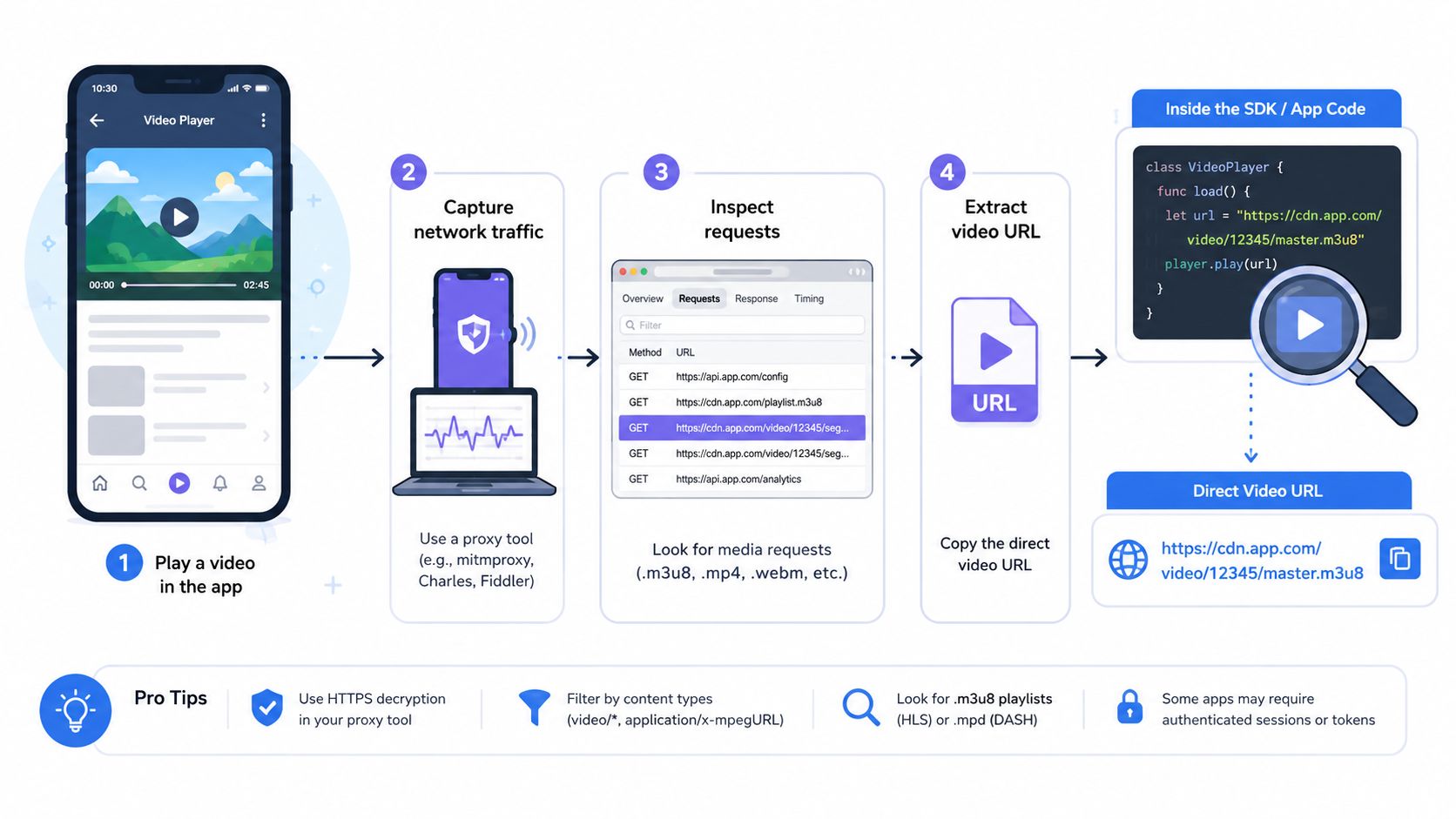
Open developer tools and select the Network panel. Reload the page, start playback, and filter requests by Media. Browser labels vary across Chromium versions, so focus on the request that carries video data or returns the playback manifest.
Use these cues:
- Manifest requests: An
.m3u8or.mpdresponse is usually a small text document. It can reference variants and segments instead of containing the video. - File requests: An
.mp4or.webmresponse generally has a larger transferred size and a video-oriented content type. - Segment requests: HLS and DASH playback produce repeated CDN requests for chunks. Capture the manifest, which is the stream's entry point, rather than an arbitrary segment.
- Authorization details: Query parameters, cookies,
Origin, andRefererheaders can determine whether the request succeeds. Copying the URL alone may omit the session or signed-request context.
Make the capture easier to read
Disable the browser cache before reloading. Use throttling if playback is too fast for requests to remain easy to identify. Sort by transferred size, but do not assume the largest entry is the correct URL. A large segment confirms data transfer, while the smaller manifest explains how the player assembles the stream.
For tracing an original upload instead of extracting bytes, save the clearest available copy and compare candidate pages by timing, duration, account type, and description quality. The workflow for tracing original video sources is more reliable than accepting the first visually similar result, as shown in the workflow for tracing original video sources.
Locating Video URLs Inside Mobile Apps and SDKs
Mobile apps remove the address bar, so URL discovery becomes a player-observability problem. The player may receive an opaque token from your API, resolve it into a manifest, and then request segments without ever exposing a copyable link to the user.
Android with Media3 or ExoPlayer
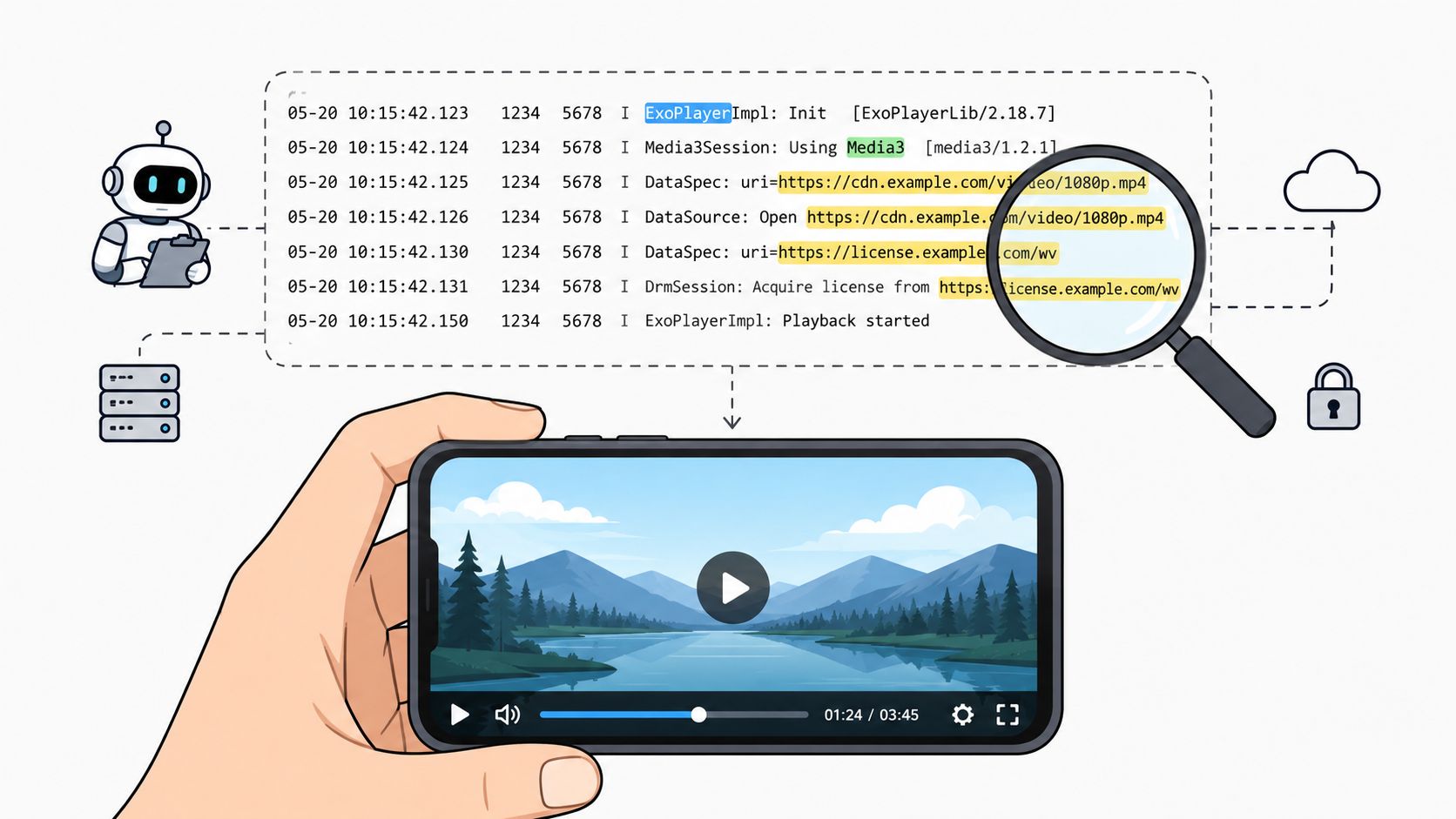
For Android capture and playback clients, log the resolved source during player initialization and inspect requests through Android Studio's profiling tools. Media3 and ExoPlayer integrations can expose the HLS .m3u8 or DASH .mpd endpoint through player events and network logging, even when the application starts with a token rather than a complete URL.
The useful evidence isn't only the URI string. Check the response behavior too:
- High transferred bytes suggest actual media data rather than metadata.
- A
video/MIME type indicates that the response is being treated as video content. - HTTP 206 Partial Content commonly appears when the player retrieves byte ranges or segmented playback data.
- Repeated segment requests indicate that the player is consuming a stream rather than downloading one complete file.
Avoid logging credentials or persisting signed query strings in production logs. A debug build can print the resolved host and path while redacting tokens, cookies, and authorization headers.
Flutter source inspection
With Flutter's video_player or better_player, the initial source is usually present in the controller configuration. Log that value during initialization in a debug build, then verify whether it's a file URL, an HLS manifest, or a backend-generated token.
url_launcher can open a URL for a user, but it doesn't guarantee that the opened address is the underlying media resource. If the player is inside a WebView, use WebView debugging and inspect the loaded resources through chrome://inspect. Filter by MIME type and watch for the manifest or requests carrying substantial media data.
Native iOS players
For AVPlayer-based applications, inspect the AVPlayerItem asset and enable HTTP Live Streaming diagnostics in development. The same distinction applies: the initial item may identify a playlist, while subsequent requests identify variants and segments.
For Physical AI clients running on Android, Flutter, smart glasses, or edge hardware, this observability is essential. The ingest endpoint often has to be derived from what the player resolves, not guessed from a server configuration label.
Using Video URLs in Ingestion and Search Pipelines
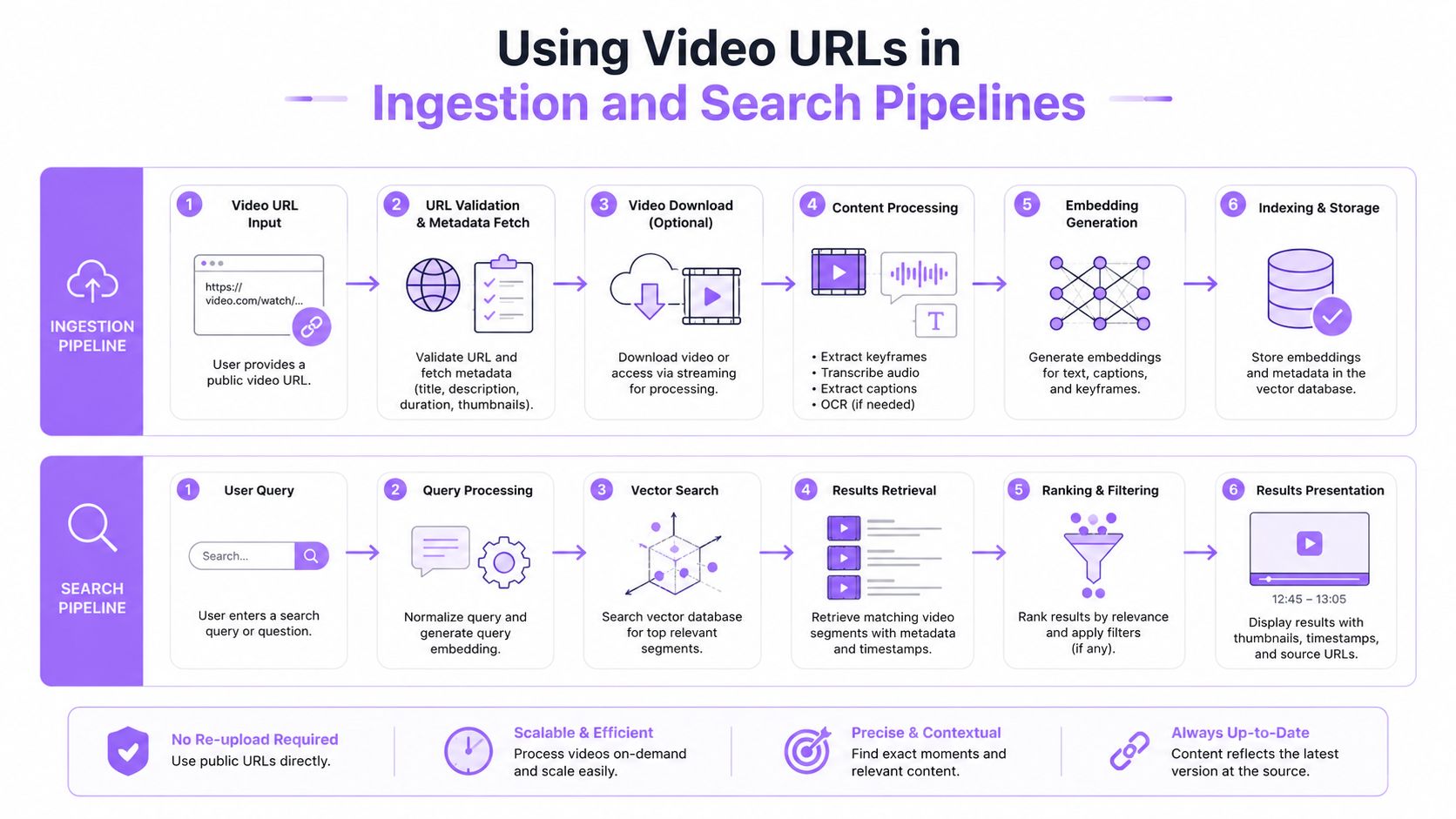
A discovered URL becomes useful only after the pipeline assigns it a durable role. A public .mp4 or .webm file is straightforward for a single upload. A live or protected source usually needs a manifest, authorization context, and a worker that can resolve segments while access remains valid.
For robotics and Physical AI workloads, preserve the source identity separately from its temporary access address. Store the canonical object key and bucket reference, then resolve a fresh signed GET URL when an ingestion job starts. The worker should fetch or buffer the content immediately and re-host it inside the controlled pipeline instead of passing the signed URL through every downstream stage.
A durable ingestion pattern
A practical flow looks like this:
- Resolve access at job time. Generate a fresh signed URL for the worker, rather than persisting a transient query string as the source of truth.
- Fetch and normalize. Buffer the file or resolve the manifest while authorization is valid. Use chunked or multipart transfer where mobile and edge networks make one large request fragile.
- Extract temporal content. Use tools such as FFmpeg or PyAV to preserve the capture timing needed for motion, contact, and interaction analysis.
- Index multiple signals. A multimodal system can connect frames, spoken content, environmental sound, and timestamps for retrieval.
- Persist durable metadata. Keep the object identity, capture context, and derived indexes. Don't treat the signed URL as permanent metadata.
Why multimodal context changes search
Advertisement video edition is a clear example. An editor may need the moment where a product appears while a particular line is spoken and a sound effect begins. Searching visual frames alone forces manual review. A unified video and audio index can narrow the footage using both cues, then return the relevant time segment for editing.
Robotics has a different requirement. Vision for Robotics can identify an object, pose, or visible action, but the camera may be occluded. In a sensory-fusion study, vision alone struggled with occlusion, while audio supplied immediate feedback for moments hidden from the camera. The study reported 60% success for vision plus audio in a difficult manipulation setting (the sensory-fusion study).
That is why Physical AI stacks increasingly combine perception, memory, and action interfaces. NVIDIA's Cosmos 3 was announced on June 1, 2026, as an open world model for physical systems trained on 20 trillion multimodal tokens, including nearly 1 billion images and 400 million real and synthetic videos, along with audio, text, and action data (reporting on NVIDIA Cosmos 3). Google DeepMind's Gemini Robotics ER 2, announced on July 30, 2026, lets developers stream multimodal video, audio, or text into the model and expose low-level control or navigation interfaces as tools (Google DeepMind's Gemini Robotics ER 2 announcement).
These systems differ from conventional media search. A conventional pipeline retrieves files or timestamps. A Physical AI memory layer must connect what a robot saw, what it heard, and what action followed, often under bandwidth and authorization constraints.
Troubleshooting Signed and Restricted Video URLs
A URL that plays in your browser may fail in a script, player, or ingestion worker. The browser can attach cookies, an origin, a referrer, or a signature that the external request does not have. Treat the copied address as one part of the access contract.
| Failure Mode | Symptom | Diagnostic | Fix |
|---|---|---|---|
| Signed URL expiry | Playback or retry returns 403 Forbidden |
Compare the request time with the signature's validity and inspect the exact failed request | Fetch immediately, buffer or re-host the content, and generate a fresh signed URL for each job |
| Domain or referrer restriction | The link works in the original page but fails in a player or script | Replay the request with the same Origin and Referer context used by the player |
Use the approved embed or playback path, or configure the service for the consuming domain |
| Missing CORS permission | Browser playback fails across origins while a server request may work | Inspect the browser console and response headers for the storage or CDN request | Configure the source to expose the consuming origin and required media headers |
| Signed-cookie scope mismatch | The page loads but media requests are rejected | Compare cookie scope, request host, path, and signing region | Issue cookies for the actual media host and align the signing configuration with the request |
Replay the exact network request
Capture the request from browser developer tools, including relevant headers, then replay it with Postman or curl -v. Copying the address alone can hide the authorization details. A signed URL may still fail because the CDN expects a matching origin, cookie, host, or referrer.
Check the request that failed, not only the initial page request. For segmented playback, inspect the manifest and subsequent media requests separately. A watch-page URL can load successfully while the manifest or individual segments return 403 Forbidden.
Privacy and domain controls create another source of confusion. Uscreen's guidance on retrieving video URLs distinguishes watch-page URLs, embed URLs, and direct media URLs. Authentication or allowed-domain rules can make one address valid in its original context but unusable elsewhere.
Mobile and edge workflows often expose a manifest plus segments instead of a single file address. The Video URL Finder browser extension can help identify those requests, but an extension does not bypass access controls or grant permission to retrieve protected media.
Operational rule: Persist the canonical asset identity, not a temporary signed URL. Resolve access when the worker needs it, validate the response, and keep authorization data out of long-lived logs.
If a worker retries after a signed URL expires, refresh the URL before retrying rather than replaying the stale address. For a Physical AI ingestion pipeline, also record the asset identifier, manifest or file type, and authorization outcome separately from the temporary request URL.
V-Modal AI provides search APIs and Android and Flutter SDKs for indexing and retrieving video, audio, and related physical-world signals, with utilities for signed streaming and chunked uploads. Review the repository and test it against the player and storage model before using it in a robotics workflow that needs searchable historical context.